
Cluster sequences#
Overview#
Clustering groups the sequences in a table by similarity in embedding space, using hierarchical clustering on top of a protein language model embedding (for example, PoET-2). Once a clustering job finishes, every sequence gets a cluster label you can view as a color-coded UMAP, browse as a column in the table, and use to filter or select groups of related sequences.
Where this applies#
The Cluster control lives in the same toolbar (alongside Embedding and Predictions) above every sequence table in the product, so the steps below work the same way across Generate, Score, and Design.
Before you start#
Have a sequence table open.
Clustering runs on top of an embedding. You will be able to pick an embedding model as part of the setup, so you don’t need to precompute one separately.
How to build the prompt for the embedding model, see Embedding Model and Prompt below.
1. Open the cluster panel#
In the toolbar above the table, click the Cluster dropdown (it reads None if nothing is clustered yet). This opens the Cluster panel, which lists any existing clustering jobs that had already been run against the table and their settings (embedding, method, linkage, distance metric).
To start a new one, click New clustering in the top-right of the panel.
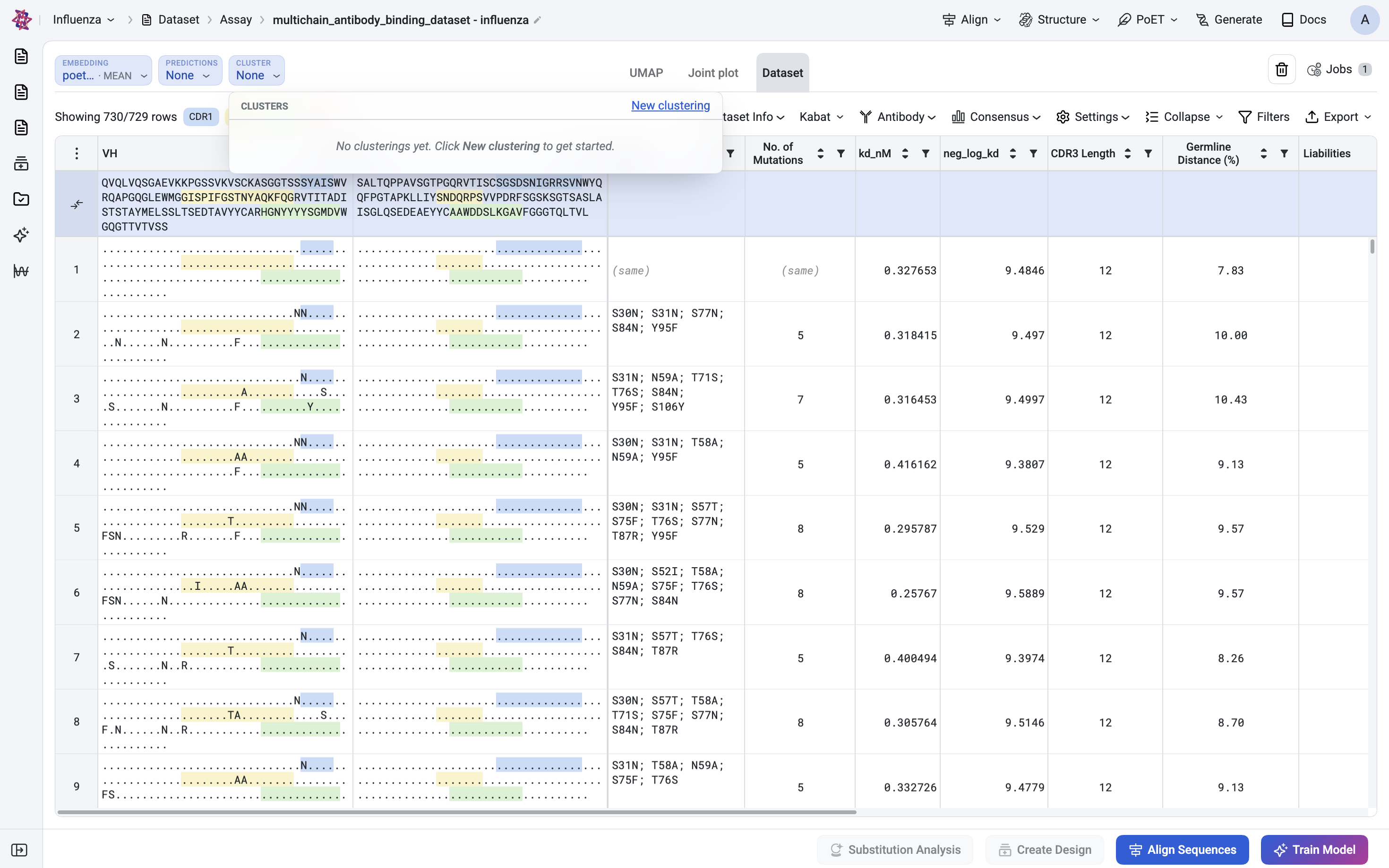
Tip: If a clustering job has already been run on this table, you can just select it from this list instead of creating a new one, jump to Step 4 below.
2. Configure the clustering job#
New clustering opens the Cluster Sequences dialog. This clusters every sequence in the table using the embedding model and method you choose here.
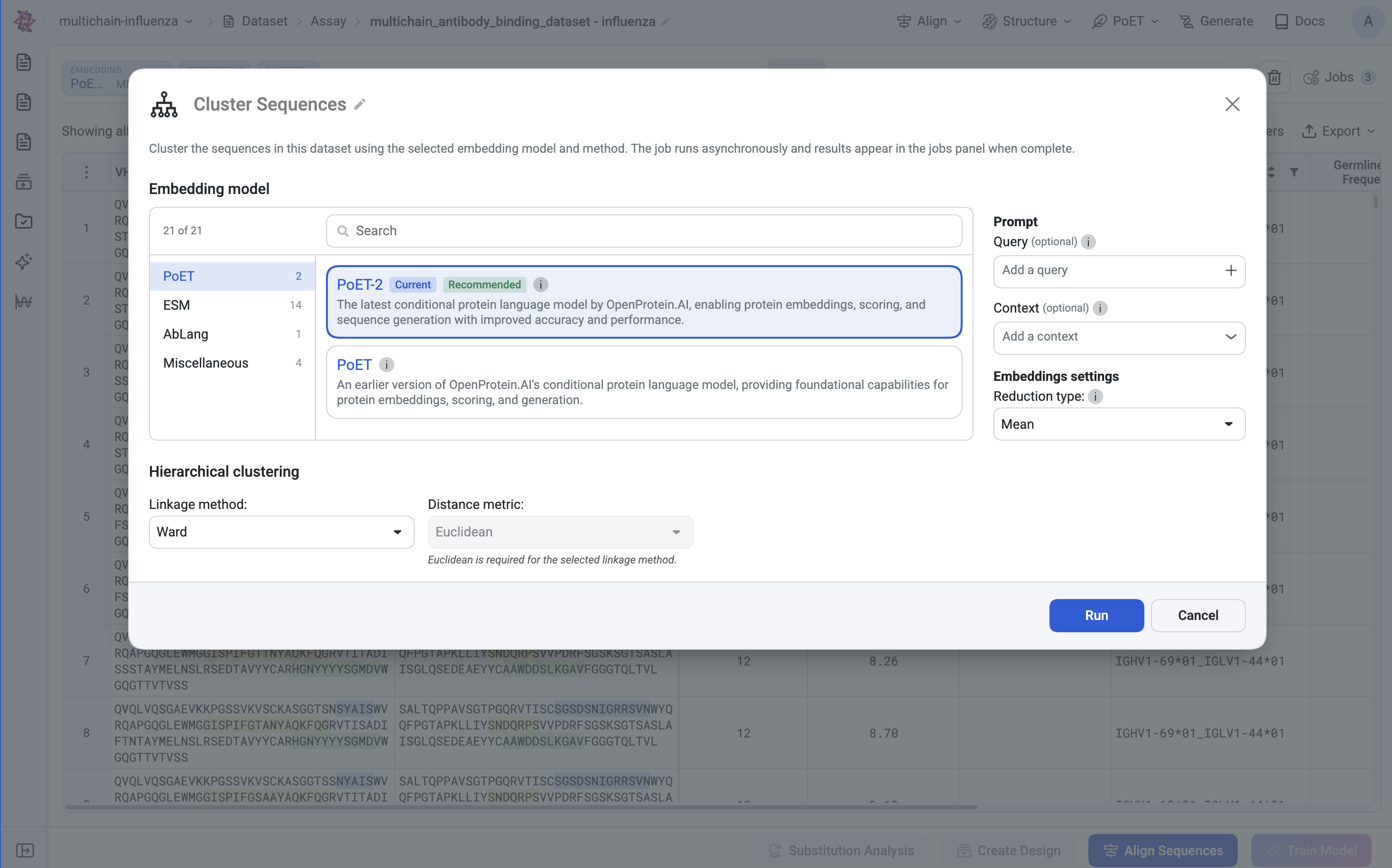
The Cluster sequences dialog: pick an embedding model and prompt on top, then a reduction type and hierarchical clustering method below.
Embedding model and prompt#
Embedding model: choose which protein language model generates the embeddings sequences are clustered on. The current recommended default is PoET-2.
Prompt: PoET family models are conditional, so they need a prompt for context. Reuse an existing saved prompt from the list, or click + Create new prompt to build a new one. See prompt and prompt sampling methods on how to build a prompt.
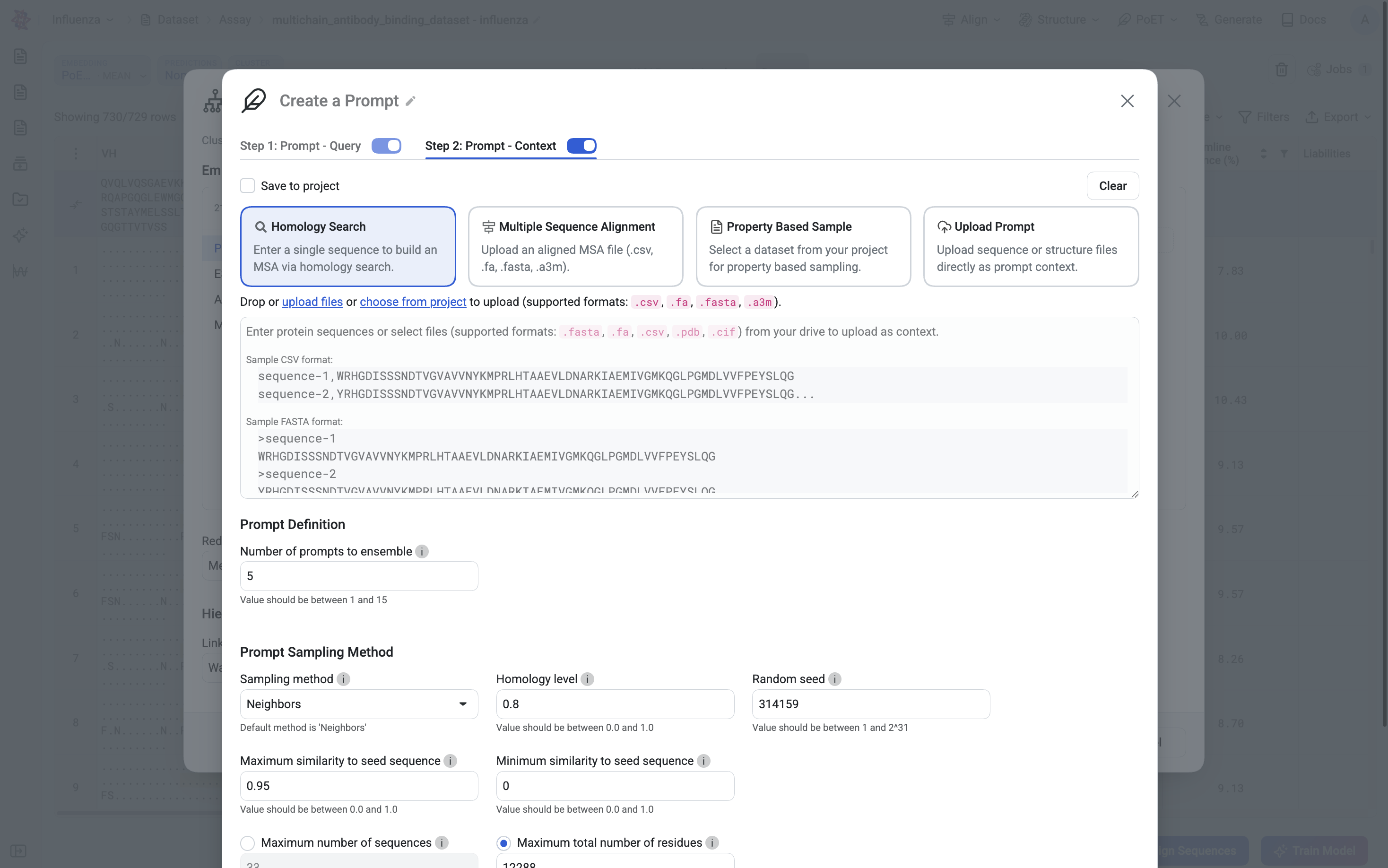
Note: Models without a conditional prompt requirement (e.g. ESM) will skip the prompt step. If you see the error “Prompt Query: Please enter a sequence or upload a file…”, either finish building/selecting a prompt or switch to a model that doesn’t require one.
Reduction type and clustering method#
Reduction type: how per-residue embeddings are collapsed into a single vector per sequence (Recommended:
Mean).Linkage method: the hierarchical clustering linkage criterion (Recommended:
Ward).Distance metric: the distance used between embedding vectors (Recommended:
Euclidean). Some linkage methods, like Ward, require Euclidean distance and will lock this field automatically.
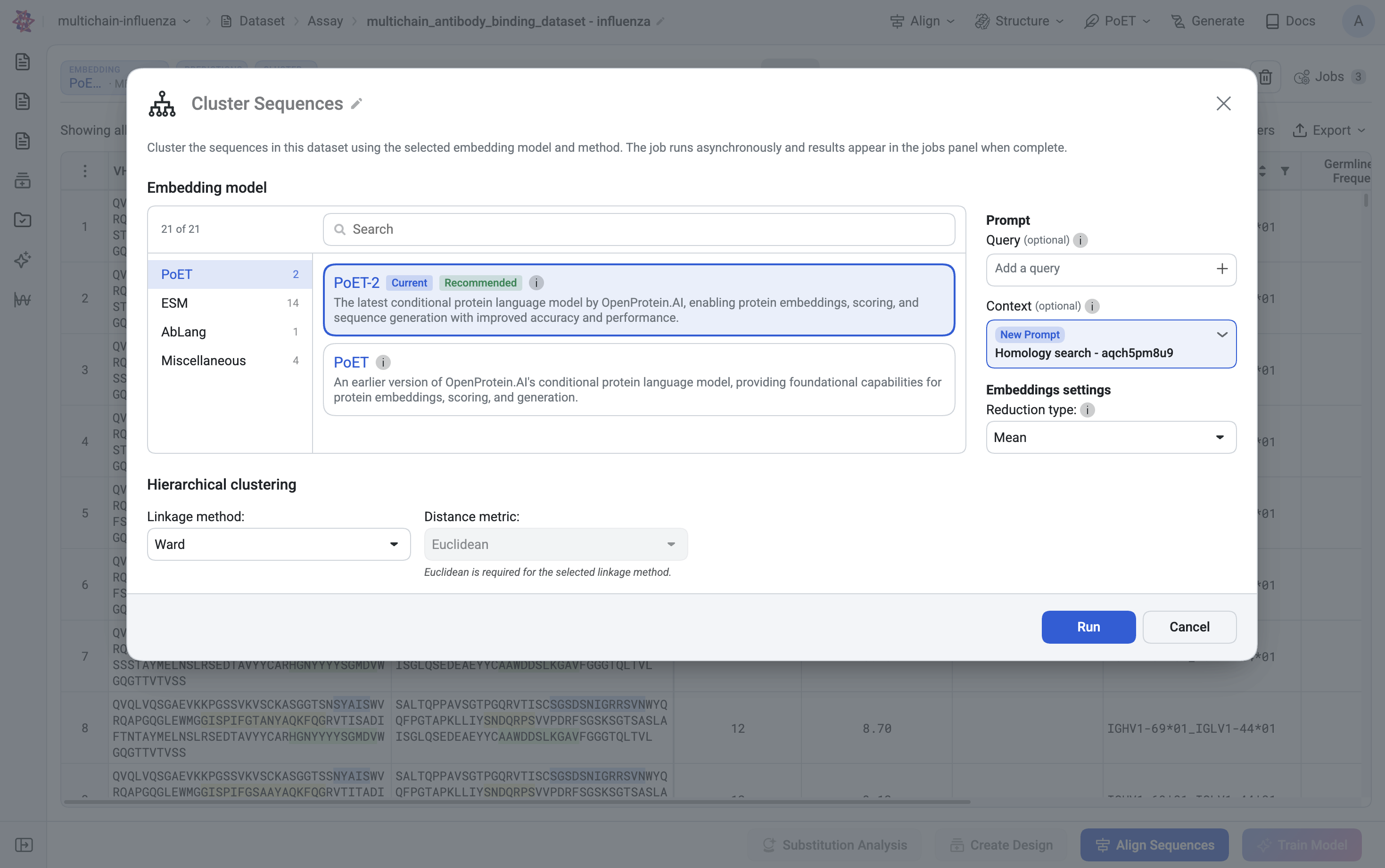
When everything is set, click Run.
3. Run the job and wait for it to finish#
Clustering runs asynchronously. After you click Run, a job status bar appears above the table, and the Jobs counter in the top-right increments. You can keep working, open the Jobs panel any time to check progress, and the new cluster becomes selectable in the Cluster dropdown once it completes. Refresh your browser to view the completed jobs.
4. Select the cluster and tune its resolution#
Open the Cluster dropdown and click a clustering run to select it. Two additional controls appear for hierarchical clusterings:
Number of clusters: cuts the hierarchical dendrogram to produce exactly this many clusters.
Cluster distance: alternatively, cut the dendrogram at a given distance threshold, adjusting one updates the other.
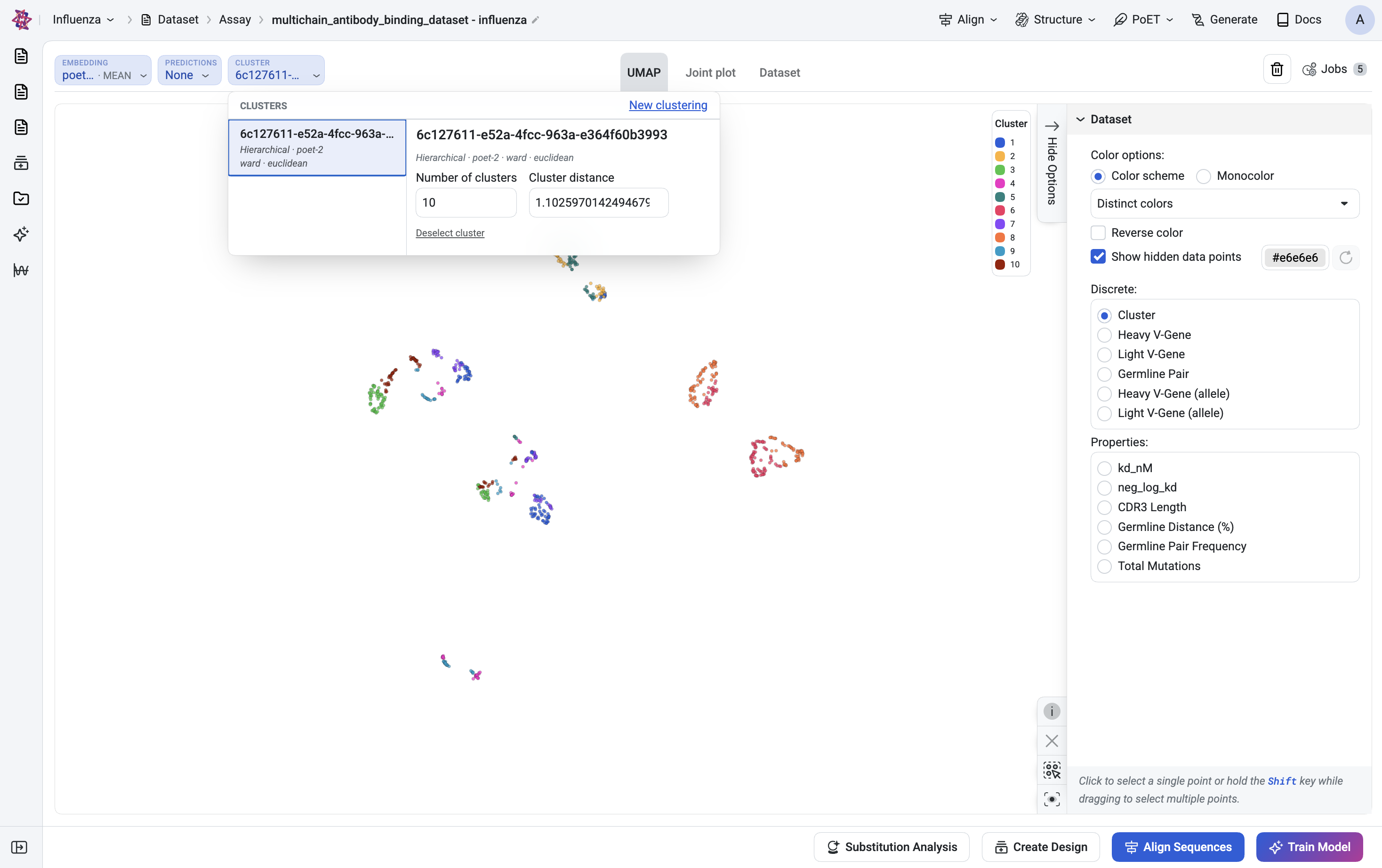
Both update instantly against the already-computed job, so you can explore coarser or finer groupings without re-running the clustering. Click Deselect cluster to go back to None.
With a cluster selected, use Number of clusters or Cluster distance to change resolution on the fly.
5. Use the results#
UMAP tab: in the right-hand Dataset panel, set Discrete to Cluster to color every point by its cluster assignment, using a distinct-colors legend numbered 1, 2, 3, etc.
Dataset / results table: each row shows its assigned cluster once a clustering is selected, so you can sort or filter the table by cluster.
Downstream actions: select a cluster’s points on the UMAP (click, or Shift-drag to multi-select) to view them in the table.
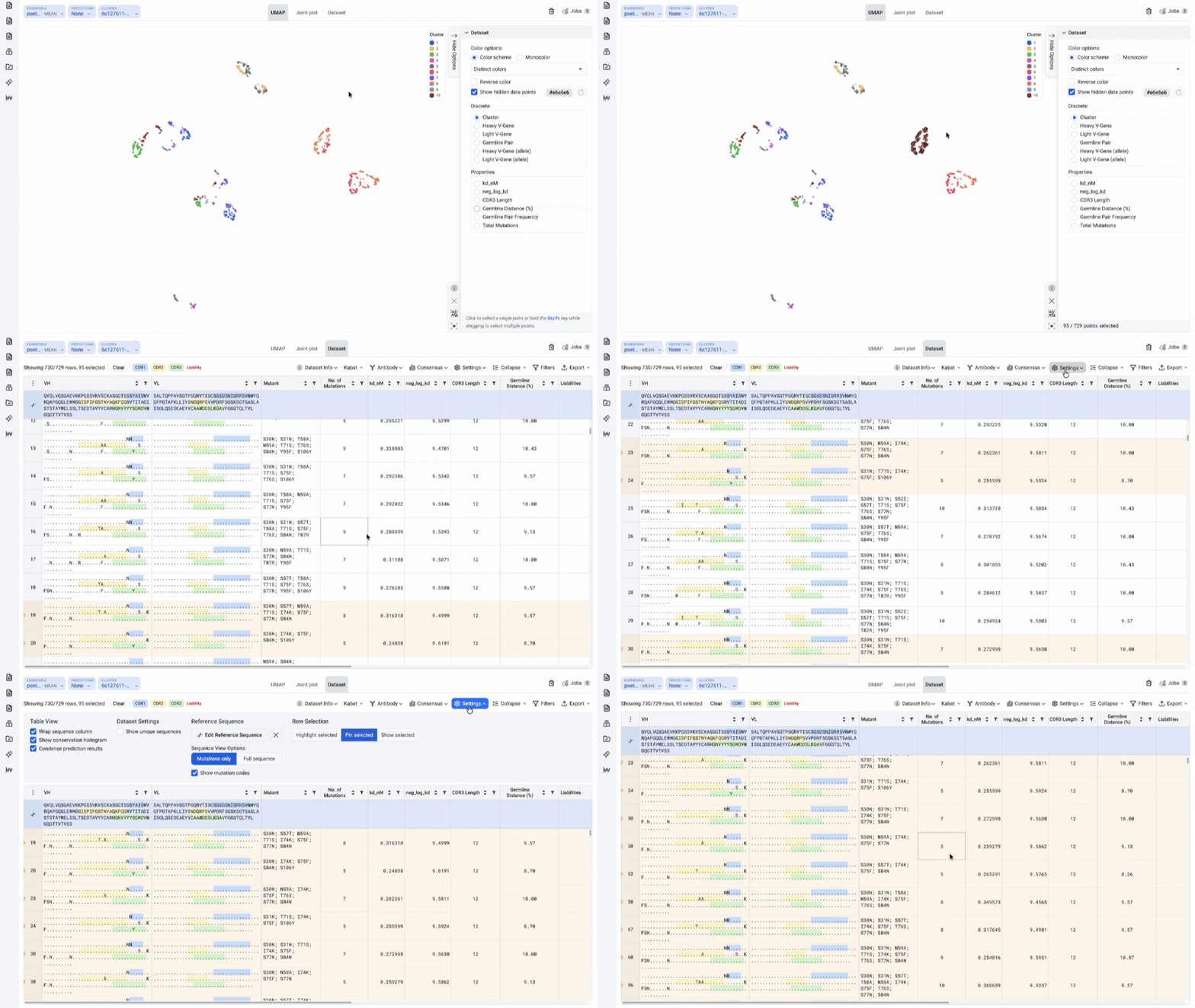
UMAP colored by cluster (Discrete to Cluster), with each of the 10 clusters shown in a distinct color.
Tip: Switch Discrete back to a continuous property at any time to compare cluster structure against an experimental readout side by side.
Settings reference#
Setting |
Required? |
What it controls |
|---|---|---|
Embedding model |
Required |
Which protein language model produces the per-sequence embeddings clustering runs on (PoET-2, ESM variants, AbLang, etc.). |
Prompt |
Model-dependent |
Context sequences used by conditional models (PoET family). Reuse a saved prompt or build one via Homology Search, MSA upload, Property Based Sample, or direct Upload. |
Reduction type |
Required |
How per-residue embeddings are pooled into one vector per sequence (e.g. Mean). |
Linkage method |
Required |
Hierarchical clustering linkage criterion, e.g. Ward, complete, average. |
Distance metric |
Required |
Distance function between embeddings, e.g. Euclidean. Some linkage methods force this to Euclidean. |
Number of clusters |
Post-run |
Cuts the dendrogram to a target cluster count. Adjustable after the job completes, no re-run needed. |
Cluster distance |
Post-run |
Cuts the dendrogram at a distance threshold instead of a fixed count. Linked to Number of clusters. |
Tips and troubleshooting#
Question |
Answer |
|---|---|
The Run button gives a “Prompt Query” error. |
The selected embedding model needs a prompt but none is attached yet. Select an existing prompt from the list, finish building a new one and submit it, or pick a model that doesn’t require a prompt. |
Can I re-cluster with different settings without losing my current one? |
Yes. Click New clustering again to start another run with different embedding/method settings. Every run is saved and listed in the Cluster dropdown, so you can switch between them freely. |
Do I need to rerun the job to see more or fewer clusters? |
No. Number of clusters and Cluster distance are applied on top of the already-computed dendrogram, so changing them is instant. |
Does this work the same in Design and Predict results tables? |
Yes. The Cluster control sits in the same toolbar position in Dataset, Design, and Predict result views, and the setup dialog and UMAP coloring behave identically. |