
Using The Score Sequences Tool#
This tutorial teaches you how to assess protein fitness by using the Score Sequences tool to score your input sequences relative to a prompt. Use this as a starting point for predicting the outcomes of a specific sequence or prioritizing variants for further analysis.
On this page, you will learn how to score sequences to predict fitness and rank variants, then interpret and fine-tune the results.
If you run into any challenges or have questions while getting started, please contact OpenProtein.AI support.
What You Need Before Starting#
This tool requires a multiple sequence alignment (MSA), from which it builds a prompt. You can upload your own MSA or have the OpenProtein model generate one for you. If you aren’t already familiar with prompts, we recommend learning more about OpenProtein.AI’s prompts and prompt sampling methods before diving in.
You also need an input sequence, or list of sequences you want to score against the prompt.
Score Your Sequences#
Navigate to the tool by opening the PoET dropdown menu, then selecting Score Sequences. You can choose the model used to run the job. We recommend using PoET-2 for most use cases.
Step 1: Input Sequences#
You can upload a dataset containing multiple sequences in either .fasta or .csv format. Once uploaded, your dataset will appear.
If you choose to upload a CSV file, please note the following requirements:
The file must not include a header row.
It can contain a maximum of 2 columns.
If there are 2 columns, the first one must be the sequence names.
You can choose the default structure prediction model to generate the sequence structures after the job completes.

Step 2: Prompt Query#
Refer to Creating a Query to learn about Prompt Query.
Step 3: Prompt Context#
Refer to Creating a Context to learn about Prompt Context.
You’re ready to score your sequences! Click Run. The job may take a few minutes depending on how busy the service is, how long your sequences are, and how many sequences you want to score.
A 400 (Bad request) error code may be due to the following:
Issue description |
Solution |
|---|---|
Invalid PoET Job or Parent |
Re-enter prompt and try again. |
Invalid prompt in PoET service |
Reupload prompt and try again. Refer to the article about prompts. Ensure minimum and maximum similarity parameters are not filtering out all sequences in prompt. |
Invalid user input in align service |
Ensure you don’t have
If necessary, refer to the article on sampling parameters. |
Invalid MSA (not aligned, etc) |
|
Please contact OpenProtein.AI support if the suggested solutions don’t resolve the issue.
Interpreting Your Results#
Refer to Interpreting PoET Results Table.
Fine-tuning Your Results#
Improve your results by adding more sequences with your desired properties to your MSA, or by adjusting the prompt sampling method. You can also adjust the Maximum similarity to seed sequence and Minimum similarity to seed sequence fields.
To improve scores, increase the number of the ensemble setting. This will result in higher scoring sequences, but will take longer to complete.
Running predictions within a dataset#
If the sequences you want to score already live in a dataset, design results, or predict results table, you can score them in place using the Predictions panel instead, without leaving the table.
Predictions supports two kinds of models:
A user model you’ve already trained on your own assay data, so its held-out accuracy is known before you trust its ranking.
A foundation model, such as PoET-2, for zero-shot scoring when you don’t yet have labeled data for the property you care about.
Step 1: Create prediction#
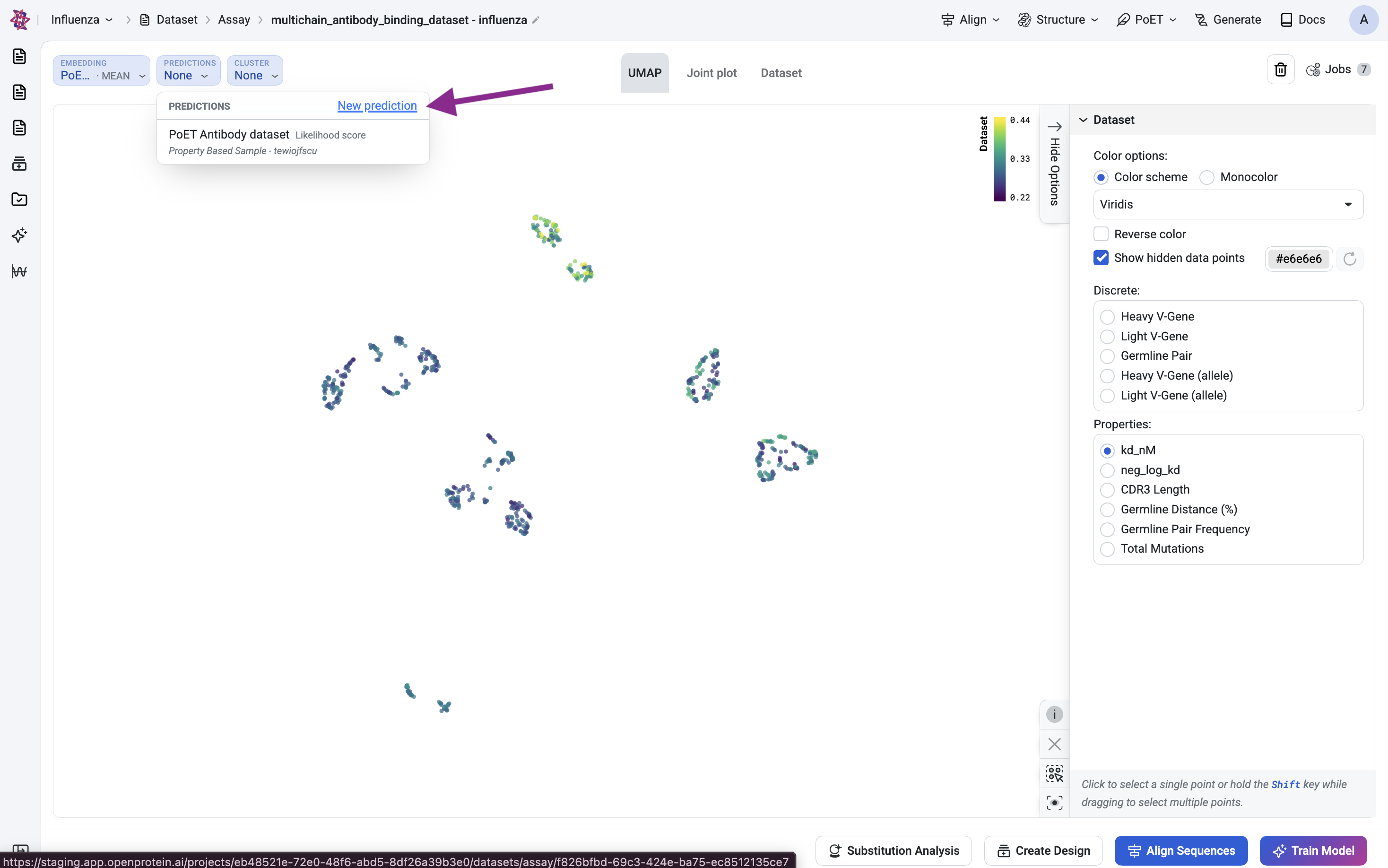
In the toolbar above the table, click the Predictions dropdown (it shows None if the table hasn’t been scored yet). This lists any prediction jobs already run against the table. Click New prediction to open the Create Prediction dialog.
Step 2: Choose a model#
Create prediction offers two tabs:
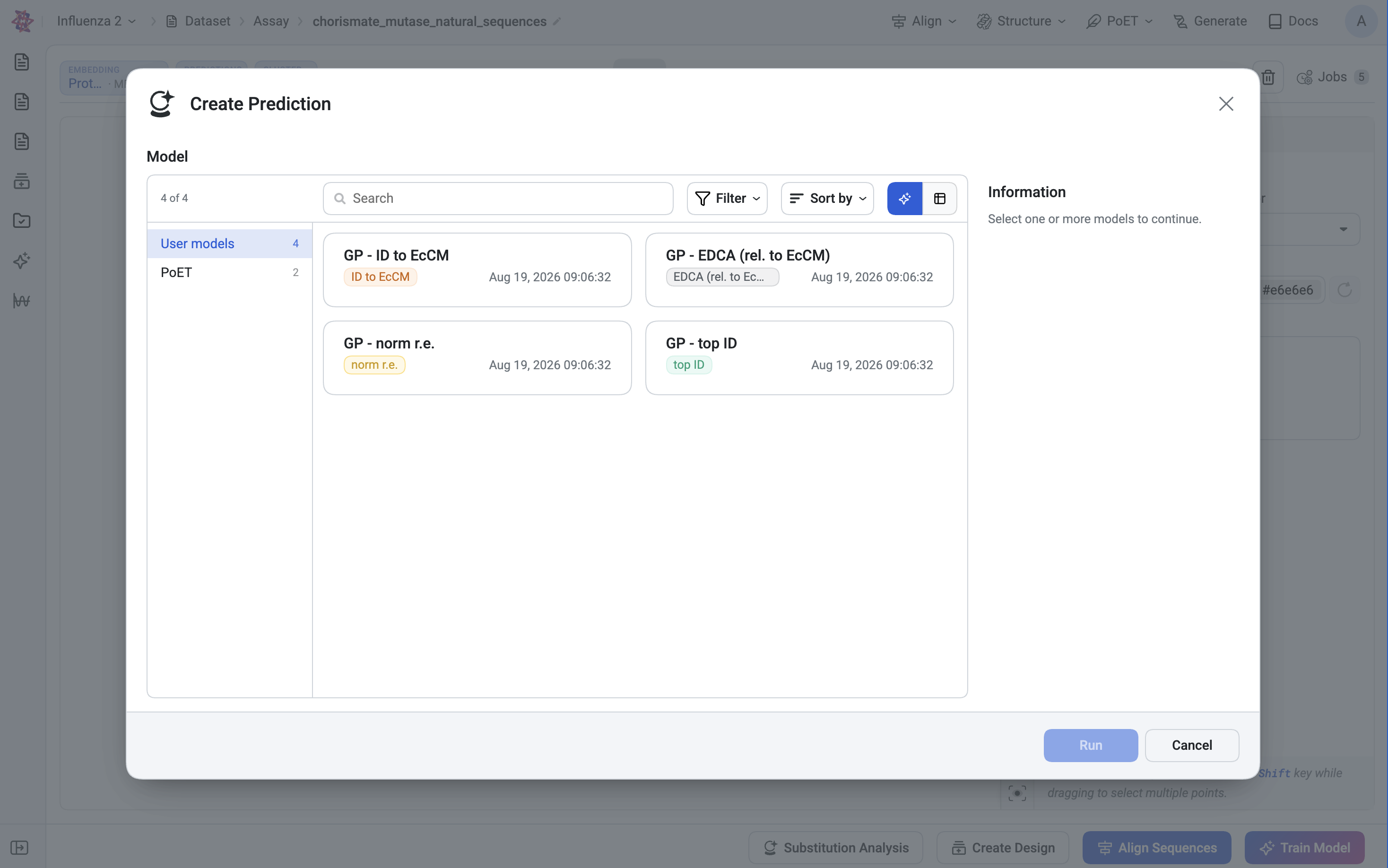
User models lists trained models available in your project, along with the property each one predicts, what dataset it was trained on, and its held-out Spearman’s rho and Pearson’s r against measured values. Select one or more models and click Run to score the whole table.
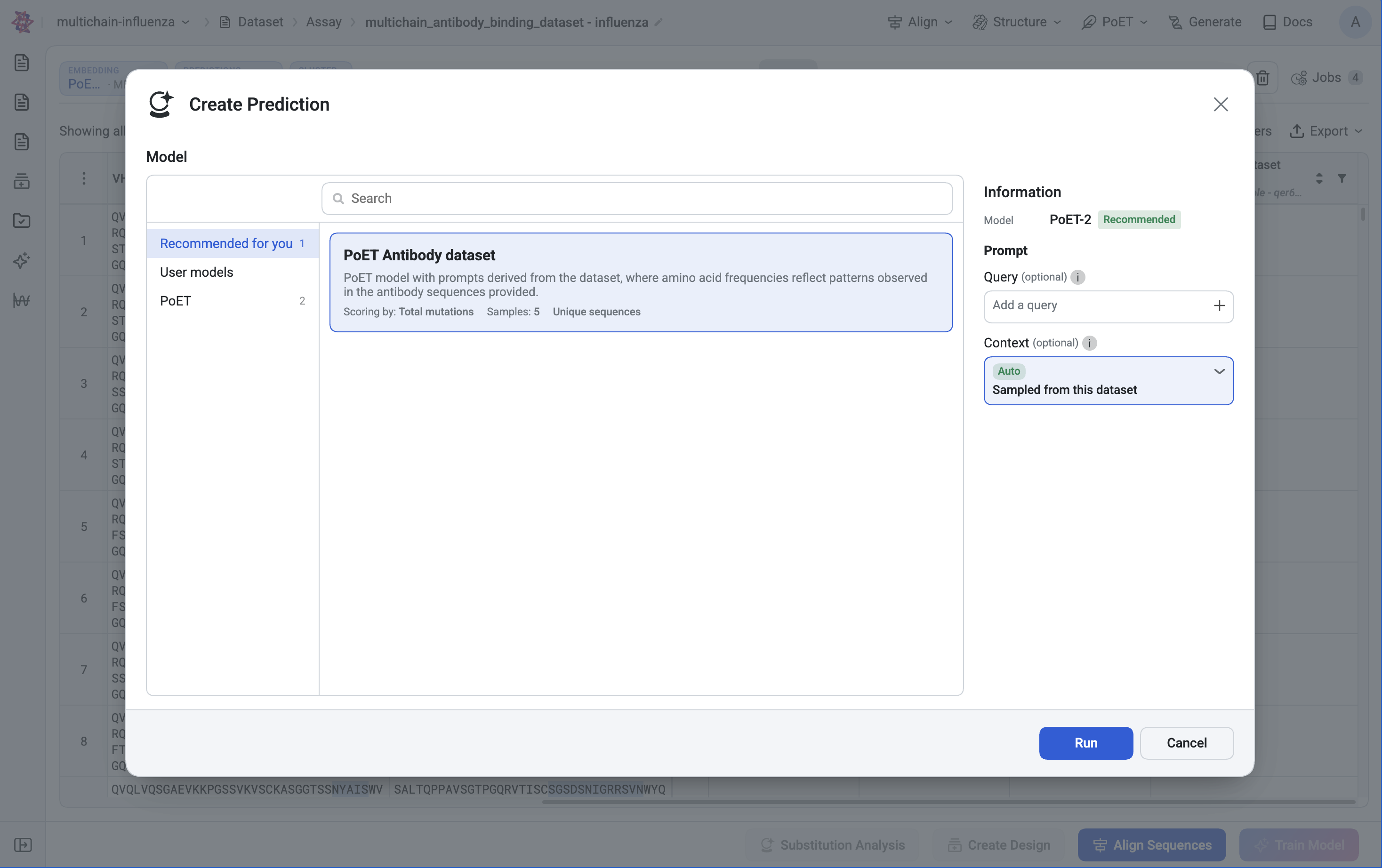
Foundation models lets you score without a trained model of your own. Models are grouped by family, with PoET-2 recommended. PoET-family models are conditional and require a prompt, the same prompt mechanism used by Score Sequences (see prompts and prompt sampling methods). Reuse a saved prompt or build a new one before running.
Step 3: Run the scoring job#
Scoring runs as a background job. After clicking Run, a job status bar appears above the table and the Jobs counter increments. The Predictions dropdown shows the run as in progress until it finishes, at which point its predicted column becomes available in the table.
Step 4: Read the predicted column and select hits#
Once a run finishes, select it from the Predictions dropdown. Each selected run adds its own column to the table, named after the source model, sitting right alongside any measured column it was trained to predict.
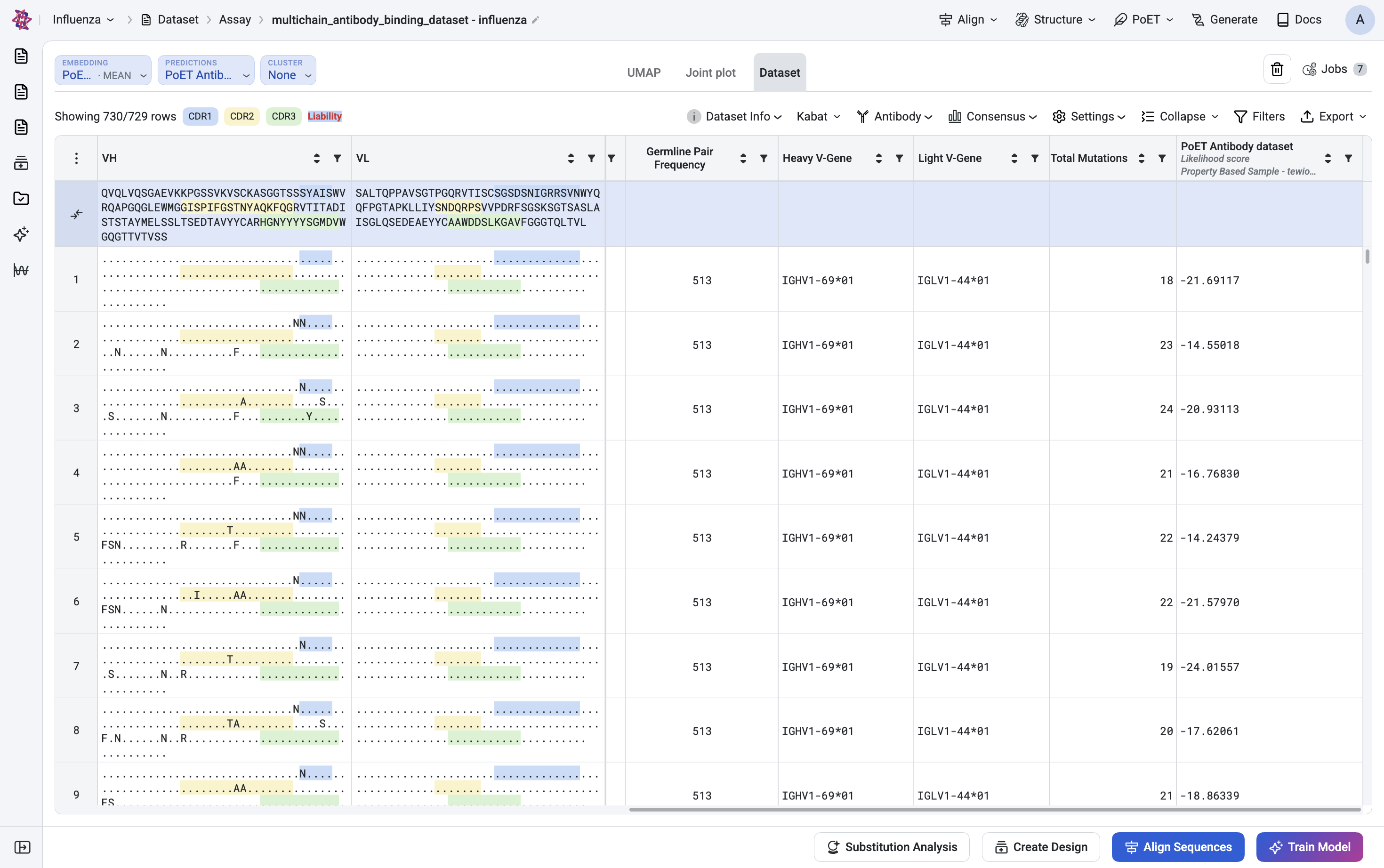
With a predicted column in the table, hit selection is a matter of working the table:
Action |
Why it helps |
|---|---|
Sort by the predicted column |
Brings your top-scoring candidates to the top. |
Filter above a score threshold |
Cuts the table down to only the rows worth reviewing. |
Cross-check against cluster assignment, if available |
Keeps your shortlist diverse instead of pulling near-duplicates from one region of sequence space. |
Select more than one completed run |
Lets you compare predictions across multiple properties at once, for example activity and stability. |
Once you’ve selected your rows, carry the shortlist forward into Create Design, Substitution Analysis, or Train Model.
Next Steps#
Now that you have a list of sequence variants of interest, you can use Structure Prediction to visualize the 3D structures of a protein sequence. You can also use Substitution Analysis to score all single substitution variants of your parent sequence conditioned on the prompt, and view the results in a heatmap.